


我家云——从零开始到一台完整的下载服务器


一、从官方系统刷机变成armbian系统
照着 联想粒子矿云/我家云 线刷OMV(Open Media Vault),图文教程 的帖子刷机就好了,这里使用的固件是: 我家云、粒子云可前面板按键关机armbain内核5.4.2纯净版 所有刷机材料及固件文件备份在下面的网盘链接中。
{cloud title=刷机材料(教程、驱动、固件) type=default url=https://drive.kanochan.net/s/rJSL?path=%2F password=\/}
二、更新系统时间
刷机好后开机,遇到的 第一件事 第二件事就是更新系统时间。(第一件事是修改root用户密码)。因为系统时间错误,而且ntp软件未安装,在时间错误的情况下安装软件可能会导致错误,所以需要手动修改系统时间。方法如下:
1、更改系统时区
执行命令
tzselect在出现的结果中,用数字选择大洲、国家、地区
root@Chainedbox:~# tzselectPlease identify a location so that time zone rules can be set correctly.Please select a continent, ocean, "coord", or "TZ".1) Africa 7) Europe2) Americas 8) Indian Ocean3) Antarctica 9) Pacific Ocean4) Asia 10) coord - I want to use geographical coordinates.5) Atlantic Ocean 11) TZ - I want to specify the timezone using the Posix TZ format.6) Australia#?root@Chainedbox:~# tzselectPlease identify a location so that time zone rules can be set correctly.Please select a continent, ocean, "coord", or "TZ".1) Africa 7) Europe2) Americas 8) Indian Ocean3) Antarctica 9) Pacific Ocean4) Asia 10) coord - I want to use geographical coordinates.5) Atlantic Ocean 11) TZ - I want to specify the timezone using the Posix TZ format.6) Australia#? 4Please select a country whose clocks agree with yours.1) Afghanistan 10) Cyprus 19) Japan 28) Macau 37) Qatar 46) Turkmenistan2) Armenia 11) East Timor 20) Jordan 29) Malaysia 38) Russia 47) United Arab Emirates3) Azerbaijan 12) Georgia 21) Kazakhstan 30) Mongolia 39) Saudi Arabia 48) Uzbekistan4) Bahrain 13) Hong Kong 22) Korea (North) 31) Myanmar (Burma) 40) Singapore 49) Vietnam5) Bangladesh 14) India 23) Korea (South) 32) Nepal 41) Sri Lanka 50) Yemen6) Bhutan 15) Indonesia 24) Kuwait 33) Oman 42) Syria7) Brunei 16) Iran 25) Kyrgyzstan 34) Pakistan 43) Taiwan8) Cambodia 17) Iraq 26) Laos 35) Palestine 44) Tajikistan9) China 18) Israel 27) Lebanon 36) Philippines 45) Thailand#? 9Please select one of the following timezones.1) Beijing Time2) Xinjiang Time#? 1
The following information has been given:
China Beijing Time
Therefore TZ='Asia/Shanghai' will be used.Selected time is now: Sun Oct 24 11:11:56 CST 2021.Universal Time is now: Sun Oct 24 03:11:56 UTC 2021.Is the above information OK?1) Yes2) No#? 1
You can make this change permanent for yourself by appending the line TZ='Asia/Shanghai'; export TZto the file '.profile' in your home directory; then log out and log in again.
Here is that TZ value again, this time on standard output so that youcan use the /usr/bin/tzselect command in shell scripts:Asia/Shanghairoot@Chainedbox:~#将修改结果存入本地文件中
cp /usr/share/zoneinfo/Asia/Shanghai /etc/localtime2、手动更改系统时间
date -s MM/DD/YY //修改日期date -s hh:mm:ss //修改时间3、修改时间以后,修改硬件CMOS的时间
hwclock --systohc三、更新系统软件包
第一次更新可能比较久,因为官方源在国外,建议全程科学网络更新。为了安装最新版的软件,需要添加官方的测试版软件源(主要针对qbittorrent软件) 编辑文件,
nano /etc/apt/sources.list将测试版qbittorrent源添加到软件源里。 将下面的软件源粘贴到文件最后一行里,保存后执行 apt update
deb http://ftp.cn.debian.org/debian bullseye main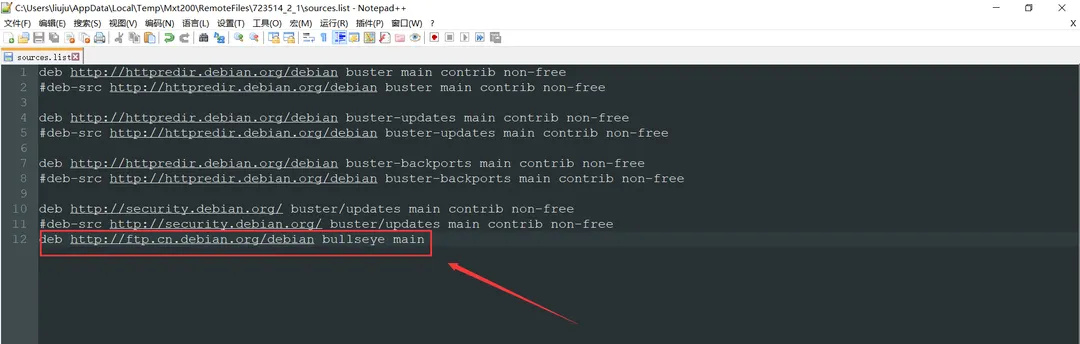
四、格式化硬盘
需要将硬盘的文件格式改成ext4格式,Windows的ntfs格式在我家云的armbian上跑不满千兆网络。注意备份好重要的文件。 装了一块4T的硬盘,因为fdisk只支持2T以内的硬盘分区,所以需要安装parted用于2T以上硬盘分区。
1、安装parted
执行命令
`apt install parted安装即可。
root@Chainedbox:~# apt install partedReading package lists... DoneBuilding dependency treeReading state information... DoneThe following additional packages will be installed: libparted2 libreadline8Suggested packages: libparted-dev libparted-i18n parted-docThe following NEW packages will be installed: libreadline8The following packages will be upgraded: libparted2 parted2 upgraded, 1 newly installed, 0 to remove and 400 not upgraded.Need to get 701 kB of archives.After this operation, 612 kB of additional disk space will be used.Do you want to continue? [Y/n] yGet:1 http://ftp.cn.debian.org/debian bullseye/main arm64 libreadline8 arm64 8.1-1 [160 kB]Get:2 http://ftp.cn.debian.org/debian bullseye/main arm64 parted arm64 3.4-1 [216 kB]Get:3 http://ftp.cn.debian.org/debian bullseye/main arm64 libparted2 arm64 3.4-1 [324 kB]Fetched 701 kB in 1s (881 kB/s)Selecting previously unselected package libreadline8:arm64.(Reading database ... 32455 files and directories currently installed.)Preparing to unpack .../libreadline8_8.1-1_arm64.deb ...Unpacking libreadline8:arm64 (8.1-1) ...Preparing to unpack .../parted_3.4-1_arm64.deb ...Unpacking parted (3.4-1) over (3.2-25) ...Preparing to unpack .../libparted2_3.4-1_arm64.deb ...Unpacking libparted2:arm64 (3.4-1) over (3.2-25) ...Setting up libreadline8:arm64 (8.1-1) ...Setting up libparted2:arm64 (3.4-1) ...Setting up parted (3.4-1) ...Processing triggers for libc-bin (2.28-10) ...Processing triggers for man-db (2.8.5-2) ...root@Chainedbox:~#2、删除所有分区
执行命令
parted /dev/sda rm 1删除sda1分区。发生了错误。
root@Chainedbox:~# parted /dev/sda rm 1Error: /dev/sda: unrecognised disk label发生了错误,原因是未修改磁盘的格式,parted无法识别是GPT磁盘还是MBR磁盘。
2.1、修改磁盘格式
执行命令:
parted /dev/sdaroot@Chainedbox:~# parted /dev/sdaGNU Parted 3.4Using /dev/sdaWelcome to GNU Parted! Type 'help' to view a list of commands.(parted) mklabel //输入mklabelNew disk label type? gpt //输入gpt(parted)修改磁盘格式后,所有分区会丢失。
3、新建ext4分区
root@Chainedbox:~# parted /dev/sda //输入parted /dev/sda对sda磁盘操作GNU Parted 3.4Using /dev/sdaWelcome to GNU Parted! Type 'help' to view a list of commands.(parted) mkpart //输入mkpartPartition name? []? sda1 //分区名称File system type? [ext2]? ext4 //分区文件系统Start? 0 //分区起始位置End? 100% //分区结束位置,100%表示使用所有空间Warning: The resulting partition is not properly aligned for best performance: 6s % 256s != 0s //关于类似4K对齐的错误,忽略即可Ignore/Cancel? Ignore/ //忽略或取消(parted) p //输入p查看分区状态Model: HGST HUS 724040ALA640 (scsi)Disk /dev/sda: 4001GBSector size (logical/physical): 4096B/4096BPartition Table: gptDisk Flags:
Number Start End Size File system Name Flags 1 24.6kB 4001GB 4001GB ext4 sda1 //可看到分区已经被创建
(parted) quit //退出parted,分区会自动保存Information: You may need to update /etc/fstab.root@Chainedbox:~#需要再一次执行
mkfs -t ext4 /dev/sda1格式化分区,不然挂载的时候会出错,不清楚原因。报错内容:mount: /mnt/sda1: wrong fs type, bad option, bad superblock on /dev/sda1, missing codepage or helper program, or other error.
五、挂载磁盘到系统
1、手动挂载
新建挂载位置: mkdir /mnt/sda1 挂载sda1分区到/mnt/sda1: mount /dev/sda1 /mnt/sda1
2、开机自动挂载
执行命令查看硬盘UUID
blkid /dev/sda1修改 /etc/fstab 文件
nano /etc/fstab添加以下内容(UUID不要照抄,用上面获得到的UUID)
UUID="e3fc34dd-a5b9-419e-ae81-4fb4eb883df9" /mnt/sda1 ext4 defaults 0 0保存文件即可。
{alert type=warning} 警告:不推荐使用上面的办法,亲测如果硬盘挂掉,会无法进入系统,只能采用故障救援的模式进入系统。但是我家云没有显示输出,如果硬盘挂掉,只能重新刷机!!! {/alert}
3、另一种开机自动挂载硬盘的方法
采用脚本任务挂载硬盘,开机自动执行脚本即可挂载,相当于手动挂载。 创建脚本文件
nano /etc/init.d/mount.sh写入以下内容
#! /bin/shsleep 1mount /dev/sda1 /mnt/sda1保存后赋予脚本权限
chmod +x /etc/init.d/mount.sh配置开机自动执行脚本挂载硬盘
nano /etc/rc.local在文本的 exit0 之前添加以下内容
sh /etc/init.d/mount.sh完成。
六、安装qbittorrent-nox
1、安装
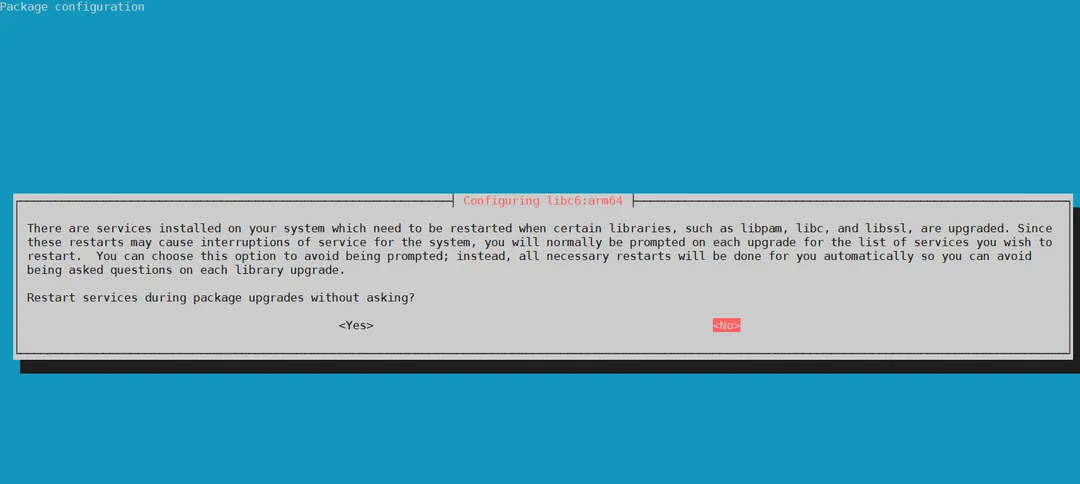
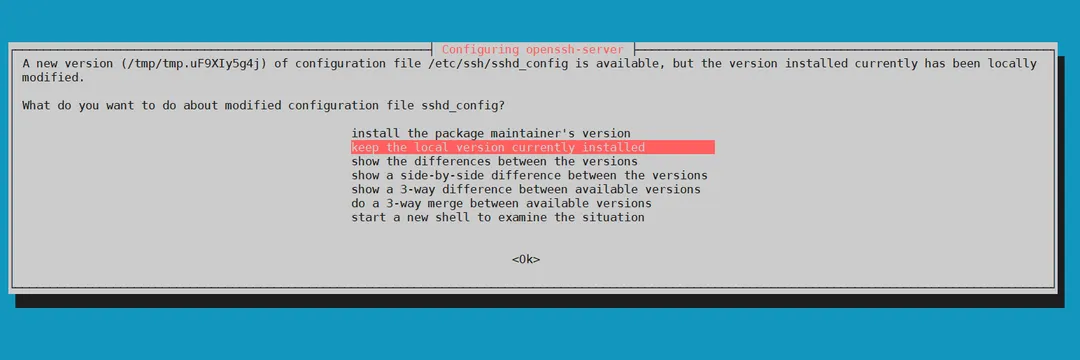
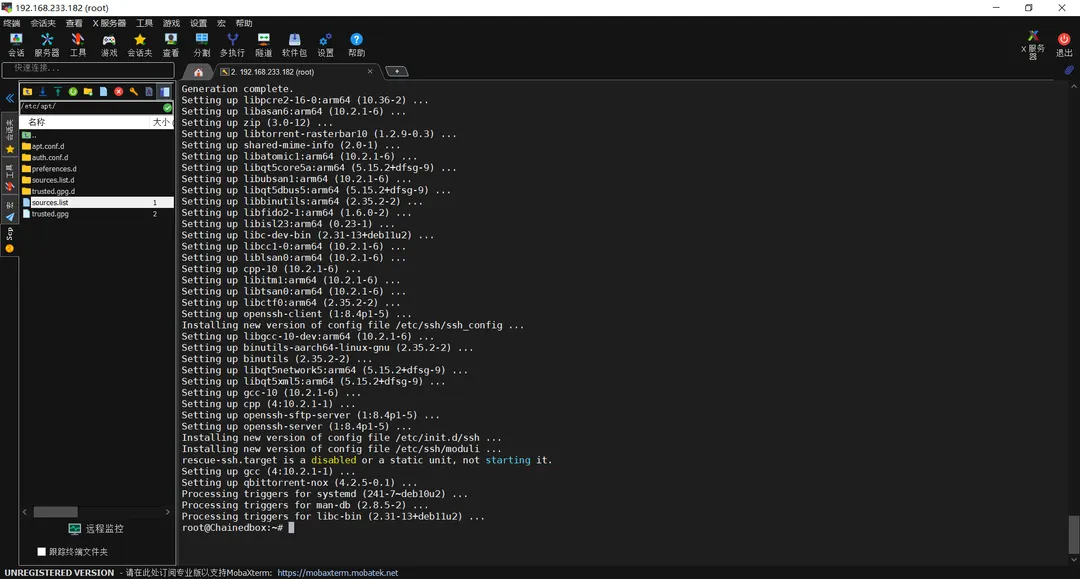
执行命令: apt install qbittorrent-nox ,安装时间视你的网络状况而定,建议全程科学网络操作。
2、 配置qbittorrent开机自启
新建一个文件
nano /etc/systemd/system/qbittorrent.service写入下面的内容后,保存。
[Unit]Description=qbittorrent torrent server
[Service]User=rootExecStart=/usr/bin/qbittorrent-noxRestart=on-abort
[Install]WantedBy=multi-user.target2.1、重启系统单元
systemctl daemon-reload2.2、设置开机自启
systemctl enable qbittorrent2.3、启动qbittorrent
systemctl start qbittorrent2.4、关闭qbittorrent
systemctl stop qbittorrent2.5、重启qbittorrent
systemctl restart qbittorrent配置下载位置什么的略过了,按照页面提示配置即可。
七、安装samba,启用网络共享
测试发现,官方源的samba安装会发生错误,更换为国内源之后可以解决。编辑清空 /etc/apt/sources.list 里的内容,更换为国内源如下:
deb https://mirrors.ustc.edu.cn/debian/ buster main contrib non-freedeb-src https://mirrors.ustc.edu.cn/debian/ buster main contrib non-freedeb https://mirrors.ustc.edu.cn/debian/ buster-updates main contrib non-freedeb-src https://mirrors.ustc.edu.cn/debian/ buster-updates main contrib non-freedeb https://mirrors.ustc.edu.cn/debian-security/ buster/updates main contrib non-freedeb-src https://mirrors.ustc.edu.cn/debian-security/ buster/updates main contrib non-freedeb https://mirrors.tuna.tsinghua.edu.cn/debian/ buster main contrib non-free# deb-src https://mirrors.tuna.tsinghua.edu.cn/debian/ buster main contrib non-freedeb https://mirrors.tuna.tsinghua.edu.cn/debian/ buster-updates main contrib non-free# deb-src https://mirrors.tuna.tsinghua.edu.cn/debian/ buster-updates main contrib non-freedeb https://mirrors.tuna.tsinghua.edu.cn/debian-security buster/updates main contrib non-free# deb-src https://mirrors.tuna.tsinghua.edu.cn/debian-security buster/updates main contrib non-free备份一下官方源,可能以后会用到
deb http://httpredir.debian.org/debian buster main contrib non-free#deb-src http://httpredir.debian.org/debian buster main contrib non-free
deb http://httpredir.debian.org/debian buster-updates main contrib non-free#deb-src http://httpredir.debian.org/debian buster-updates main contrib non-free
deb http://httpredir.debian.org/debian buster-backports main contrib non-free#deb-src http://httpredir.debian.org/debian buster-backports main contrib non-free
deb http://security.debian.org/ buster/updates main contrib non-free#deb-src http://security.debian.org/ buster/updates main contrib non-free#deb http://ftp.cn.debian.org/debian bullseye main保存文件,执行安装命令 apt install samba 安装完成后修改 /etc/samba/smb.conf ,清空里边的内容,写入下面的内容。此配置为匿名共享设置,无需登入就可以查看修改文件。可根据需要自行配置文件。
[global] workgroup = MYGROUP server string = Samba Server Version %v log file = /var/log/samba/log.%m max log size = 50 security = user map to guest = Bad User load printers = yes cups options = raw[sda1] comment = share path = /mnt/sda1 directory mask = 0777 create mask = 0777 #browseable = yes guest ok=yes writable=yes保存后执行 smbd restart 重启smaba服务以使配置生效。
八、安装Filebrowser文件管理软件
1、安装
新建文件夹 /etc/filebrowser/ ,通过GitHub下载filebrowser对应平台的二进制文件:https://github.com/filebrowser/filebrowser/releases 将下载好的文件解压,将里面的filebrowser二进制文件上传到 /etc/filebrowser/ 目录,同时在相同目录下新建文件 config.json ,打开config.json文件写入以下内容:
{ "port": 8088, "address": "0.0.0.0", "root": "/", "database": "/etc/filebrowser/filebrowser.db", "log": "/etc/filebrowser/filebrowser.log", "username": "admin"}2、配置开机自启
新建文件 /etc/systemd/system/filebrowser.service ,写入以下内容并保存。
[Unit]Description=The filebrowser Process ManagerAfter=network.target
[Service]Type=simpleExecStart=/etc/filebrowser/filebrowser -c /etc/filebrowser/config.jsonExecStop=/bin/killall filebrowserPrivateTmp=true
[Install]WantedBy=multi-user.target执行以下命令控制filebrowser
systemctl start filebrowser //启动systemctl start filebrowser //重启systemctl status filebrowser //查看状态systemctl enable filebrowser //开机自启九、安装Aria2
参考来源: Ubuntu/Debian系统安装配置aria2和WebUI
1、安装
执行命令 apt install aria2 命令安装
2、创建Aria2的工作目录和相关文件
依次输入下列命令:
mkdir /etc/aria2 #新建文件夹touch /etc/aria2/aria2.session #新建session文件chmod 777 /etc/aria2/aria2.session #设置aria2.session可写nano /etc/aria2/aria2.conf #创建aria2配置文件把下面的aria2配置文件模板写入“aria2.conf”,需要修改的有下载目录“dir”以及连接秘钥“rpc-secret”,其他内容可以不动,模板里面都有详细文字说明:
##===================================#### 文件保存相关 ####===================================##
# 文件保存目录dir=../download# 启用磁盘缓存, 0为禁用缓存, 需1.16以上版本, 默认:16Mdisk-cache=16M# 断点续传continue=true#日志保存log=aria2.log
# 文件预分配方式, 能有效降低磁盘碎片, 默认:prealloc# 预分配所需时间: none < falloc ? trunc < prealloc# falloc和trunc则需要文件系统和内核支持# NTFS建议使用falloc, EXT3/4建议trunc, MAC 下需要注释此项file-allocation=prealloc
##===================================#### 下载连接相关 ####===================================##
# 最大同时下载任务数, 运行时可修改, 默认:5max-concurrent-downloads=100# 同一服务器连接数, 添加时可指定, 默认:1# 官方的aria2最高设置为16, 如果需要设置任意数值请重新编译aria2max-connection-per-server=16
# 整体下载速度限制, 运行时可修改, 默认:0(不限制)max-overall-download-limit=0# 单个任务下载速度限制, 默认:0(不限制)max-download-limit=0# 整体上传速度限制, 运行时可修改, 默认:0(不限制)max-overall-upload-limit=0# 单个任务上传速度限制, 默认:0(不限制)max-upload-limit=0
# 禁用IPv6, 默认:falsedisable-ipv6=false
# 最小文件分片大小, 添加时可指定, 取值范围1M -1024M, 默认:20M# 假定size=10M, 文件为20MiB 则使用两个来源下载; 文件为15MiB 则使用一个来源下载min-split-size=10M
# 单个任务最大线程数, 添加时可指定, 默认:5# 建议同max-connection-per-server设置为相同值split=16
##===================================#### 进度保存相关 ####===================================##
# 从会话文件中读取下载任务input-file=/etc/aria2/aria2.session# 在Aria2退出时保存错误的、未完成的下载任务到会话文件save-session=/etc/aria2/aria2.session# 定时保存会话, 0为退出时才保存, 需1.16.1以上版本, 默认:0save-session-interval=60
##===================================#### RPC相关设置 ####此部分必须启用,否则无法使用WebUI##===================================##
# 启用RPC, 默认:falseenable-rpc=true# 允许所有来源, 默认:falserpc-allow-origin-all=true# 允许外部访问, 默认:falserpc-listen-all=true# RPC端口, 仅当默认端口被占用时修改
rpc-listen-port=6800# 设置的RPC授权令牌, v1.18.4新增功能, 取代 --rpc-user 和 --rpc-passwd 选项rpc-secret=123456
# 设置的RPC访问用户名, 此选项新版已废弃, 建议改用 --rpc-secret 选项#rpc-user=# 设置的RPC访问密码, 此选项新版已废弃, 建议改用 --rpc-secret 选项#rpc-passwd=
# 启动SSL# rpc-secure=true# 证书文件, 如果启用SSL则需要配置证书文件, 例如用https连接aria2# rpc-certificate=# rpc-private-key=
##===================================#### BT/PT下载相关 ####===================================##
# 当下载的是一个种子(以.torrent结尾)时, 自动开始BT任务, 默认:truefollow-torrent=true# BT监听端口, 当端口被屏蔽时使用, 默认:6881-6999listen-port=51413# 单个种子最大连接数, 默认:55#bt-max-peers=55# 打开DHT功能, PT需要禁用, 默认:trueenable-dht=true# 打开IPv6 DHT功能, PT需要禁用enable-dht6=true# DHT网络监听端口, 默认:6881-6999dht-listen-port=6881-6999
# 本地节点查找, PT需要禁用, 默认:falsebt-enable-lpd=true# 种子交换, PT需要禁用, 默认:trueenable-peer-exchange=true# 每个种子限速, 对少种的PT很有用, 默认:50Kbt-request-peer-speed-limit=50K
# 客户端伪装, PT需要peer-id-prefix=-TR2770-user-agent=Transmission/2.77
# 当种子的分享率达到这个数时, 自动停止做种, 0为一直做种, 默认:1.0seed-ratio=0# 强制保存会话, 即使任务已经完成, 默认:false# 较新的版本开启后会在任务完成后依然保留.aria2文件force-save=true# BT校验相关, 默认:true#bt-hash-check-seed=true# 继续之前的BT任务时, 无需再次校验, 默认:falsebt-seed-unverified=true# 保存磁力链接元数据为种子文件(.torrent文件), 默认:falsebt-save-metadata=true# 单个种子最大连接数, 默认:55 0表示不限制bt-max-peers=0# 最小做种时间, 单位:分# seed-time = 60# 分离做种任务bt-detach-seed-only=true#BT Tracker List ;下载地址:https://github.com/ngosang/trackerslistbt-tracker=udp://tracker.coppersurfer.tk:6969/announce,udp://tracker.internetwarriors.net:1337/announce,udp://tracker.opentrackr.org:1337/announce3、安装web管理
配置和运行过程要用到git和nodejs,没有的话先安装:
apt-get install nodejs git把webui-aria2项目克隆下来,保存到“/etc/aria2”目录:
cd /etc/aria2 && git clone https://github.com/ziahamza/webui-aria2.git4、创建启动脚本及配置开机自启
新建aria2c脚本文件:
nano /etc/init.d/aria2c写入以下内容:
#!/bin/sh### BEGIN INIT INFO# Provides: aria2# Required-Start: $remote_fs $network# Required-Stop: $remote_fs $network# Default-Start: 2 3 4 5# Default-Stop: 0 1 6# Short-Description: Aria2 Downloader### END INIT INFO
start(){ echo -n "启动Aria2c和WebUI" aria2c --conf-path=/etc/aria2/aria2.conf -D cd /etc/aria2/webui-aria2/ node node-server.js exit 0;}stop(){ echo -n "关闭Aria2c和WebUI" kill -9 $(ps -ef | grep node-server.js | grep -v grep | awk '{print $2}') && killall aria2c exit 0;}case "$1" instart) start;;stop) stop;;restart) stop start;;*)echo "Usage: $0 {start|stop|restart}"exit 0;;esacexit 0修改脚本文件权限为755
chmod 755 /etc/init.d/aria2c添加aria2c服务并设置开机启动
update-rc.d aria2c defaults启动服务:
service aria2c start10、通过面板led灯来判断网络状态
新建脚本文件led.sh
nano /bin/led.sh在文件中写入以下内容,并保存。
#! /bin/bashsleep 3echo 85 > /sys/class/gpio/exportecho 0 > /sys/class/gpio/exportwhile truedoping -W 1 -c 1 www.bilibili.com > /dev/null 2>&1if [ $? -eq 0 ];thenecho "high" > /sys/class/gpio/gpio85/directionecho "low" > /sys/class/gpio/gpio0/directionelseecho "high" > /sys/class/gpio/gpio0/directionecho "low" > /sys/class/gpio/gpio85/directionfisleep 3done赋予脚本权限
chmod +x /bin/led.sh配置脚本开机自启
nano /etc/rc.local在文本的 exit0 之前添加以下内容
sh /bin/led.sh完成。
文章分享
如果这篇文章对你有帮助,欢迎分享给更多人!